Genjutsu’s interface, limits and credit costs may change. Check the current settings shown in your account before generating.
Genjutsu lets you take the movement, timing and camera work from an existing video, then rebuild it with your own character or assets.
The easiest way to start is to choose a video you like from the Genjutsu Motion Library, click Recreate, and replace its reference images with your own. The screenshots below use Chloe’s Sailor Snoopy experiment, but the same process works with a person, pet or full-body character.
The quick version
- Open Higgsfield Genjutsu.
- Browse the Motion Library or Community examples.
- Choose a video and click Recreate.
- Replace the sample character images with your own references.
- Check the prompt and describe only what you want to change.
- Choose your output quality, click Generate, and review the result.
What you need
- A Higgsfield account with access to Genjutsu
- A motion video from the library, or your own short video
- Clear reference images of your face or full body
- Permission to use every face, image and video you upload
Only use photos and videos that belong to you or that you have permission to edit. Do not use another person’s face without their consent.
Step 1: Choose the video you want to recreate
Open Genjutsu, then browse the built-in Motion Library or Community page.
Pick a video with movement that suits your character. Before choosing, check:
- Is the face visible for most of the video?
- Does the person turn around or show their full body?
- Is there one main character, or several?
- Do you have enough reference images for every angle shown?
When you find a video you like, click Recreate. This loads the original motion and its current setup into the editor.
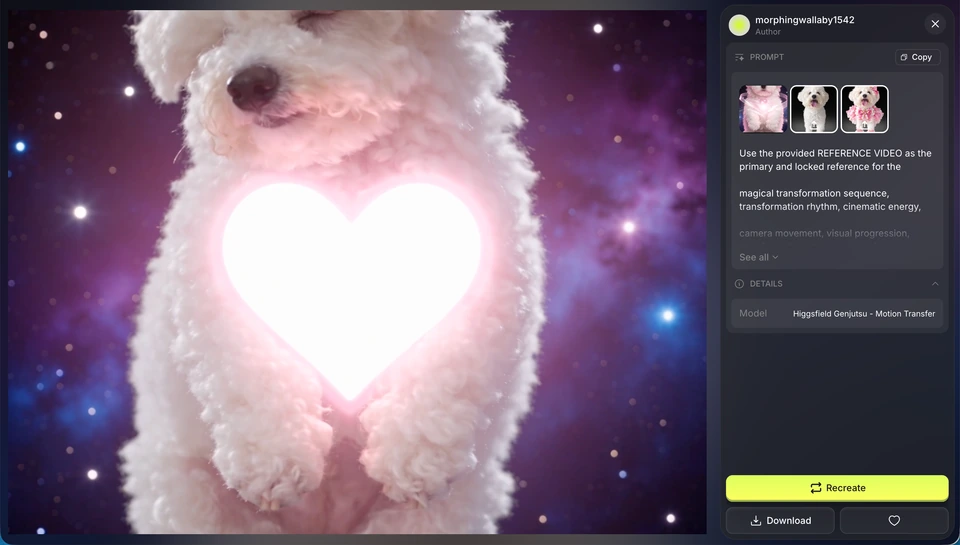
A selected Motion Library example with three reference images and the Recreate button.
If you want to use your own video instead, upload a clip between 4 and 30 seconds long.
Step 2: Choose the right Genjutsu mode
Use Motion Transfer when you want to keep the original movement, timing and camera work while rebuilding the person, outfit, location or visual style.
Use Object Swap when most of the original video should stay the same and you only want to replace one person, outfit, product or object.
For recreating a Motion Library video with your own character, Motion Transfer is usually the best place to start.
Step 3: Prepare your character references
Your reference images tell Genjutsu what your new character should look like. Clear, consistent images give it less room to guess.
If the video mainly shows your face
Upload three clear photos:
- Front view
- Side view
- Back of your head
Use recent photos taken in good light. Keep your hairstyle, hair colour and general look consistent across all three images. Avoid filters, sunglasses, hats and busy backgrounds.
If the source video shows both sides of your face, adding left-side and right-side photos can help.
If the video shows your full body
Create a full-body character reference sheet first. Upload one or more clear photos of the person to your preferred AI image generator, then copy and paste the prompt below.
Create a photorealistic character reference sheet of the person shown in the provided reference image(s). Preserve the person's identity accurately. Maintain the exact same face, facial proportions, skin tone, hairstyle, hair colour, age, body proportions and distinctive features across every view. Dress the character in simple, timeless casual clothing: a plain fitted T-shirt, straight-cut trousers or jeans, and simple neutral sneakers. No logos, graphics, jewellery or distracting accessories.

Create a horizontal character sheet containing five views of the exact same person:

View 1: Close-up portrait
Head-and-shoulders close-up, facing directly toward camera, eye level, relaxed neutral expression. Facial details clearly visible.

View 2: Full-body front
Standing naturally facing directly toward camera. Arms relaxed at sides. Entire body from head to feet visible.

View 3: Full-body three-quarter
Standing at approximately a 45-degree angle. Same posture, expression and camera distance as the front view.

View 4: Full-body profile
Exact 90-degree side profile. Natural standing posture. Entire body visible.

View 5: Full-body back
Facing directly away from camera. Clearly show hairstyle, body proportions and clothing from behind.

Character consistency is the highest priority. Every panel must depict the exact same person, not similar-looking variations. Keep facial structure, hairstyle, body shape, height, clothing, footwear and proportions identical across all views.

Use a plain light grey seamless studio backdrop throughout. Soft, even diffused studio lighting with no harsh shadows. Professional studio character photography, 50mm lens, eye-level perspective, sharp focus, realistic skin texture and pores, realistic hair strands, accurate fabric texture, natural anatomy, true-to-life colours, photorealistic.

Keep all full-body views at approximately the same scale and camera distance, with consistent lighting and enough negative space around the character.

No text, no labels, no props, no scenery, no logos, no dramatic poses, no wardrobe changes, no cropped feet, no duplicated limbs, no exaggerated beauty retouching.

16:9 horizontal composition.
Before using the finished character sheet, zoom in and check every view. Make sure the face, hair, clothes and body proportions stay the same. Generate it again if one panel looks like a different person.
Step 4: Replace the sample assets
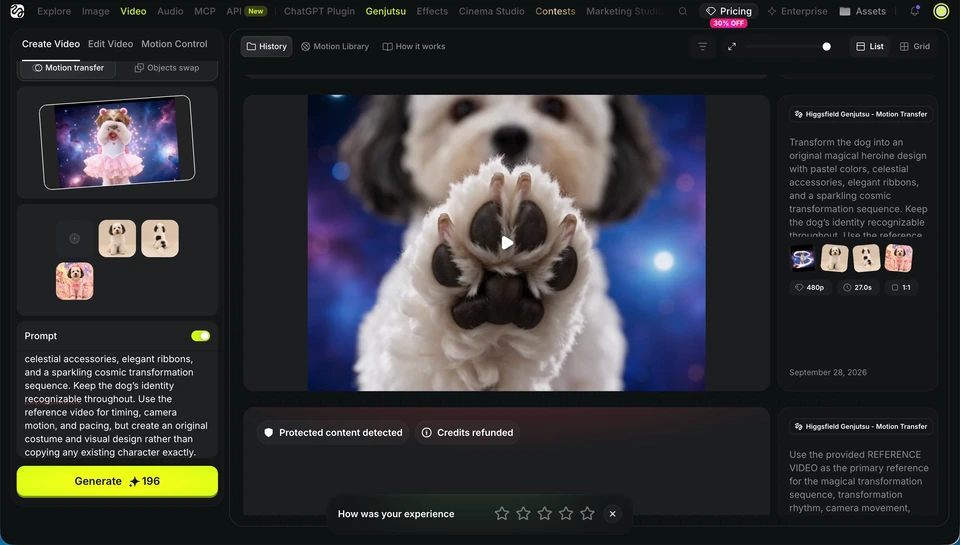
The Genjutsu editor with the motion video, selected character references, prompt and Generate button.
In the Genjutsu editor, find the section for adding characters, products, clothes or other references.
Remove or deselect the sample assets you do not want. Upload your own face photos or character sheet, then select them as the new references.
If the example has more than one person, match each new reference to the correct character. You can also keep the existing location or supporting characters if you only want to replace the main person.
Step 5: Write a simple prompt
You do not need a long prompt. Tell Genjutsu what to replace and what it must keep.
For one main character, start with:
Keep the original motion, timing, cuts, camera angle, camera movement and framing. Replace only the main character with the person shown in @Image 1. Keep the new character's face, hairstyle, body proportions and clothing consistent throughout the full video.For two characters, use:
Keep everything else in the video the same. Replace the first main character with the person shown in @Image 1 and the second main character with the person shown in @Image 2. Preserve the original motion, timing, camera movement, background and interactions.If your editor supports image mentions, type @ and select each uploaded reference so Genjutsu knows which image you mean.
Step 6: Generate your video
Review the setup before you spend credits:
- The correct motion video is selected.
- Your new reference images are selected.
- The prompt points to the right person or asset.
- The prompt says what should stay unchanged.
- The output length and quality are correct.
Click Generate. If lower-resolution previews are available, test the setup at a lower quality first. Once the character and motion look right, generate the final version at the quality you need.
Step 7: Check the result
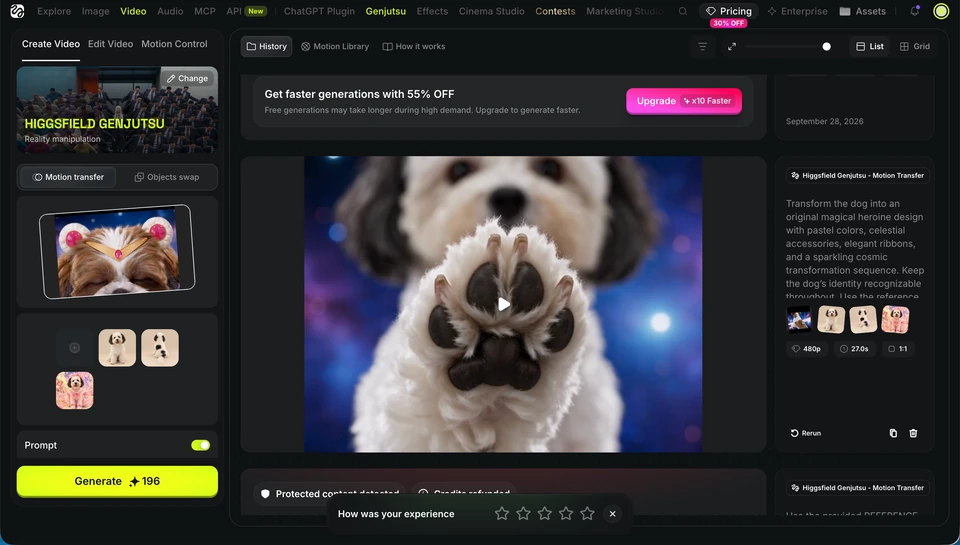
The generated result screen with the selected references still visible.
Watch the full video, not just the first frame. Look closely at:
- The face during turns and fast movement
- Hair and clothing consistency
- Hands, feet and contact with objects
- Which person was replaced
- Background and camera continuity
- Any unexpected text, logos or extra limbs
If the result is not right, change one thing at a time. This makes it easier to see what actually helped.
Quick fixes for common problems
The face keeps changing
- Use clearer, well-lit reference photos.
- Add more angles of the same person.
- Remove any image that looks noticeably different.
- Try a shorter or less complicated motion clip.
The body or clothes keep changing
- Use a character sheet with the same outfit in every view.
- Make sure the full body and shoes are visible.
- Add a line asking Genjutsu to keep the clothes and body proportions consistent.
Genjutsu replaces the wrong person
- Say replace only the main character or name the character by position, such as the person on the left.
- Tag the correct image directly in the prompt.
- Remove unused reference images that may confuse the model.
The result looks strange during fast movement
- Choose a clip with fewer cuts, less motion blur and fewer blocked body parts.
- Start with one character instead of a group scene.
- Generate another version. AI video results can vary between generations.
Final tip
Your result depends as much on the reference images as it does on the prompt. A simple prompt with clean, consistent photos will usually work better than a detailed prompt with weak references.